| Support Category: Transcript |
| Specialist Notes: |
Please provide the following guide to DOC CLC users who are requesting assistance with downloading the entirety of their completed transcripts.
| Standard Response: |
To download your full training transcript from the Commerce Learning Center (CLC) as an Excel file, please follow the steps below:
1. Log in to the Commerce Learning Center (https://doc.csod.com/).
2. From the main navigation bar, select Learning (or Training), then select View Your Transcript.
3. Select the three-dot ellipsis in the upper right corner of your Transcript. Then select Run Transcript Report.
• Important: It is recommended to select Run Transcript Report instead of Export to PDF. The Export to PDF option generates a page-by-page PDF, which can be time-consuming when exporting long transcripts. 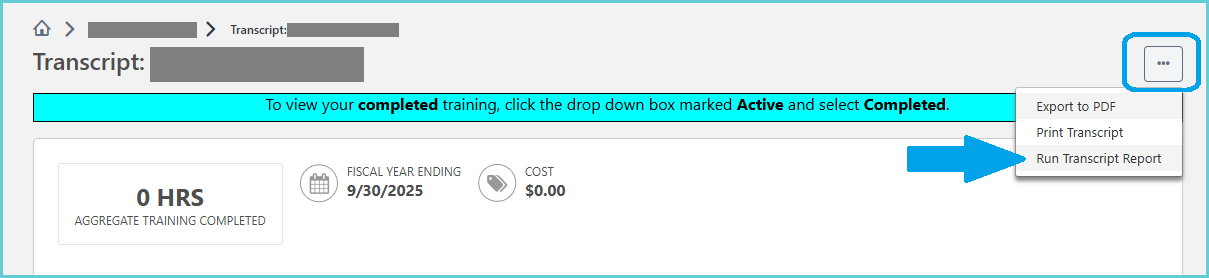
4. Select your desired reporting options. To obtain a full download of all trainings included on your CLC transcript, refer to the table and screenshot below for recommended reporting selections.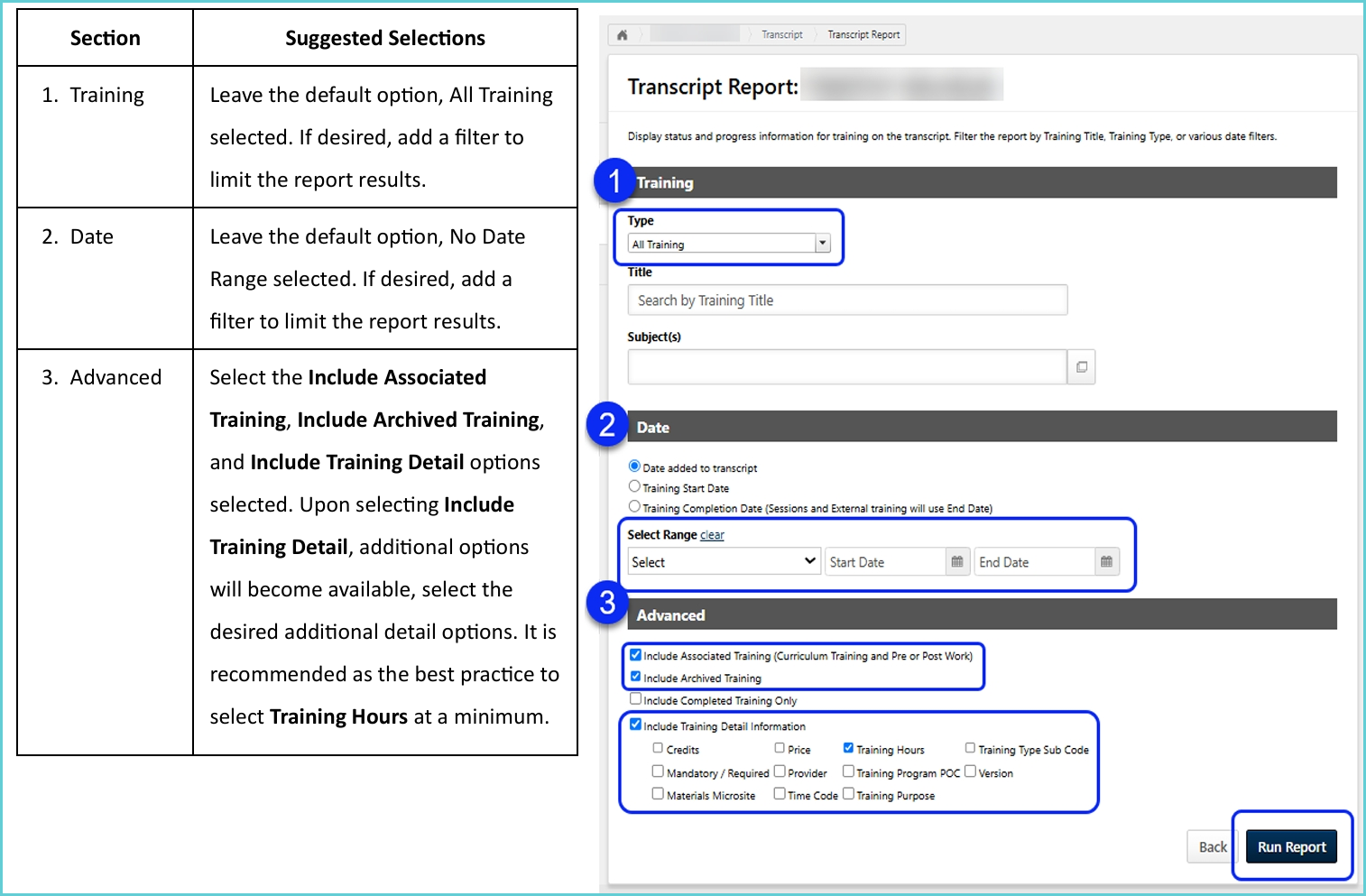
5. Select the Run Report button to generate your Transcript report.
6. The Microsoft Excel report output will automatically download to your default download
location.
7. Navigate to your Downloads folder to obtain the exported data.
8. From the Download folder, open the file to view the exported data.