| Support Category: Course Completion Issue |
| Specialist Notes: |
Should a user have issues getting the ‘DOC Customized Purchase Card Training Update FY2024’ course to move to completion-- whether they get stuck on a certain screen, the course itself stops, or after following the steps to exit the course they are redirected only to have to start over, please provide the instructions below.
| Canned Response Code: /PurchaseCard |
| Standard Response: |
We apologize for the difficulties you’re experiencing getting this course to move to completion. To try and resolve this issue, can you please follow the steps below?
1. Please relaunch and complete 'Scenario 1'. Once you have arrived at the completion screen hover your mouse over the [INSERT BROWSER THE USER IS USING] icon at the very bottom of your screen. Please do not close the scenario window. [see image below]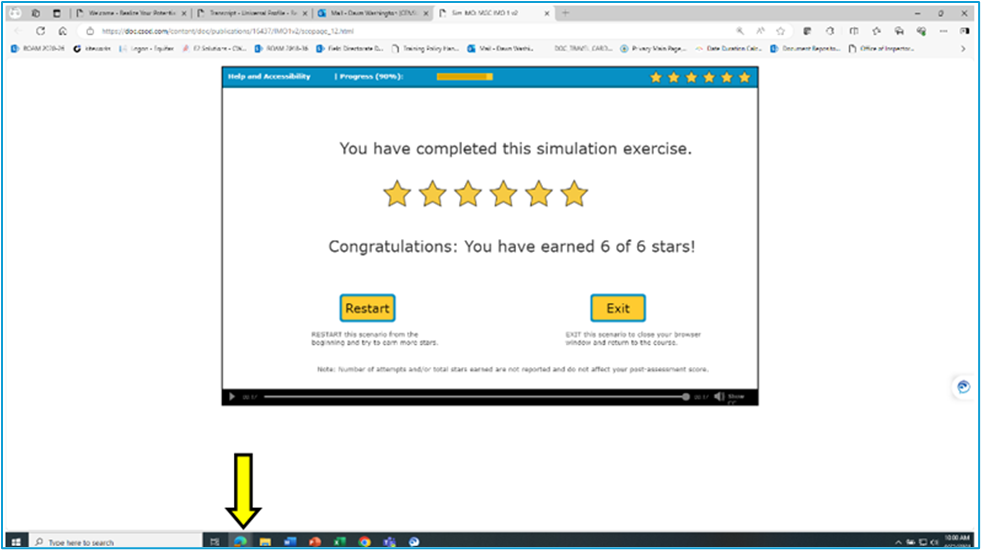
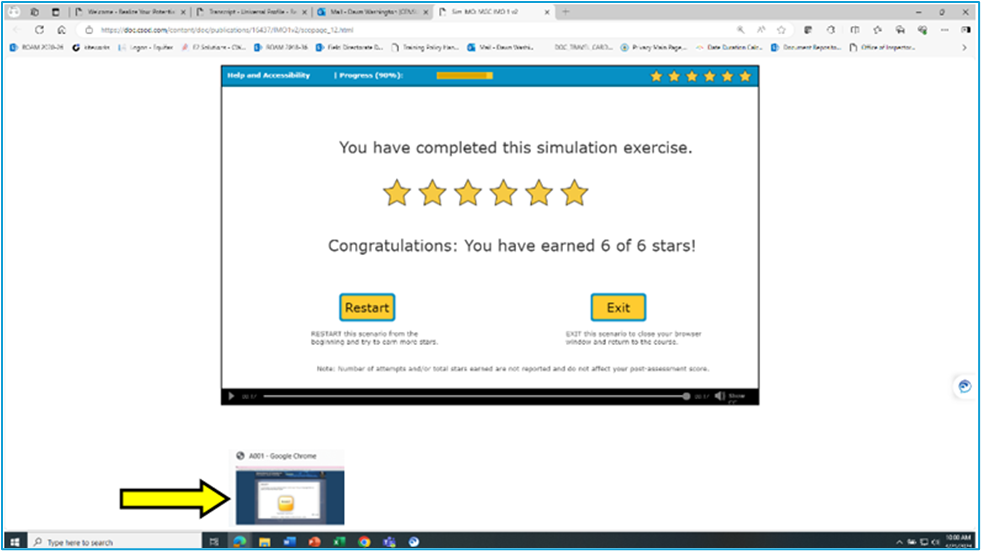
2. You will see the main screen minimized. Click on the minimized screen to bring it back into view. [see image below]
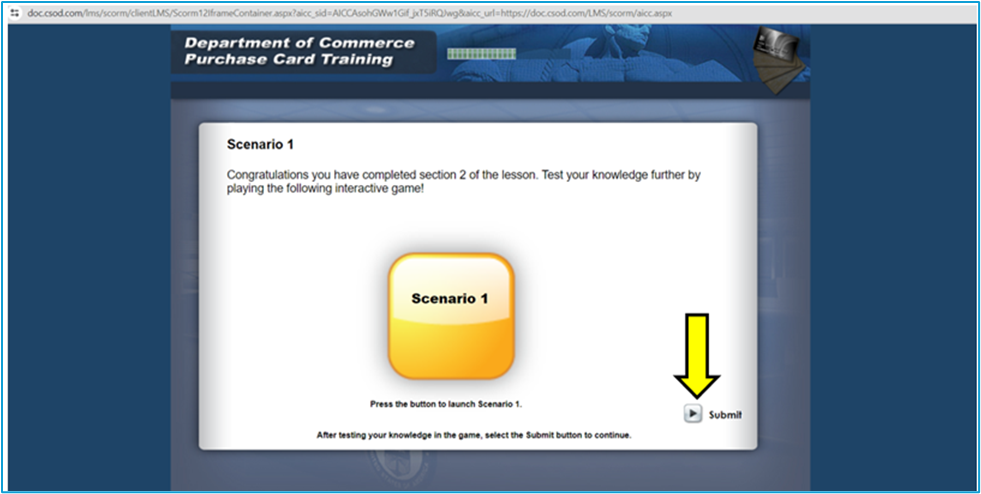
3. Next click on the 'Submit' button at the lower right-hand corner of the course page. [see image below]
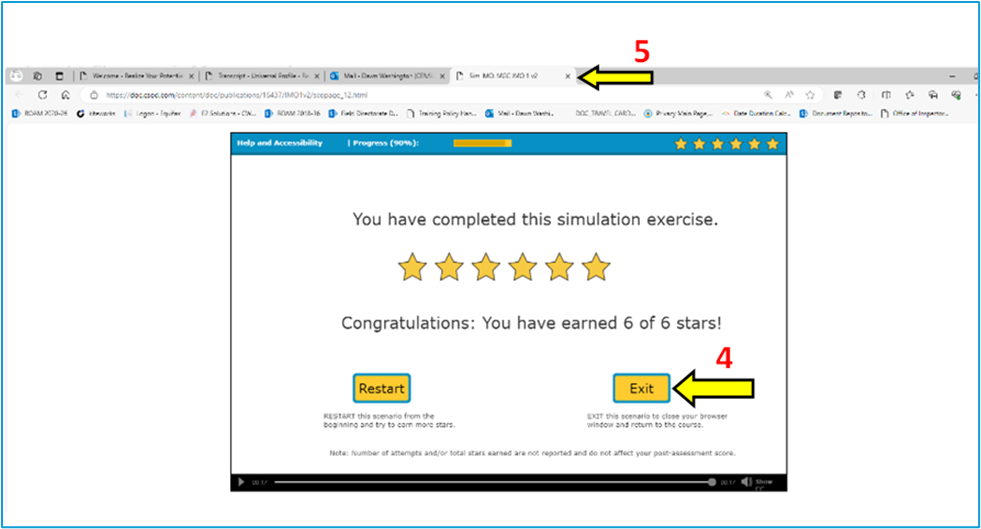
4. Head back to the 'Scenario 1' completion screen then click on the 'Exit' button at the bottom right.
5. Then close the browser window. [see image below]
6. You will see the 'Leave Site?' pop-up window. Click on the 'Leave' option, which will cause the training to close. When you relaunch the training, you will be asked if you would like to return to the last visited screen, click on 'OK'. The course should then open up on the Congratulations screen and you should be able to progress to the next section of the training.
Should you need help with any of the steps above, please let me know. I will be on standby.